12 January, 2020

An Introduction to Scripting (Blender Python - bpy)


In this video,we will be taking a look at Scripting with Blender and Python.

Before we begin, I should mention that I am in no way an expert and in fact, I have only been learning Python (and scripting in general) for a short time. That being said, I went from knowing absolutely nothing - to developing the Darkfall VFX Nodes Add-on, and would like to share with you some tips and maybe a basic introduction into Scripting. 


  We first start by arranging our layout. There are three important windows we need in order to start scripting and they can be placed anywhere in your layout. It's a good idea to save a template file (so you can use a fresh scripting start up file each time). 

Learning Python and Scripting may seem daunting at first but with a little time and patience you can create something useful. 


If you do get stuck and need some help you can always check out the Blender API, there's a stockpile of really useful information along with some nice examples. You can also check out The Blender Stack Exchange, I have been saved many times by helpful people over at the Stack Exchange and certainly recommend using it. 


Blender also comes with many Python Templates for you to check out. I find it a good idea to have a look at how other scripts are structured and many times they can be slightly adapted to fit our needs.

Now, I assume that anyone reading this blog post will have their own idea for an add-on and many things in this introduction may not apply to what you need but I think having a basic understanding of creating a simple script will go a long way when it comes to tackling your own idea. 


In this Introduction, we will be creating a very simple add-on that I dubbed the "Object Adder"... With just a few lines of code we have created our first add-on!. Congratulations!.. 


We created a Panel in the 3D View that has a bunch of buttons, that when pressed add objects. So yeah, it's obviously not that impressive but if (like me) you thought you wouldn't ever be able to code something, you have just made your first steps into the new world of Python.


There are some different ways we can layout the panel and making it look "pretty" can always come later. I like to make sure everything is working and then we can go back and make some adjustments. The first version of the Darkfall VFX Nodes add-on was a mess. Not only did it look bad but it also was not as simple to use as it is now. 

Thanks to those who have downloaded and used the Add-on, I took their feedback and started to develop newer versions. So with that being said, If you find yourself stuck or need help improving your add-on, be sure to take all the feedback you can get. 

Since we could not cover everything in a single Video, I will be creating more videos on scripting and hopefully you guys will find them helpful. If you have any suggestions on what you want to see, make sure you leave a comment in the video and let us know!.

If you guys want to check out the code that we wrote in the video, you can find it here:


import bpy

class TestPanel(bpy.types.Panel):
    bl_label = "Object Adder"
    bl_idname = "PT_TestPanel"
    bl_space_type = 'VIEW_3D'
    bl_region_type = 'UI'
    bl_category = 'My 1st Addon'
   
    def draw(self, context):
        layout = self.layout
       
        row = layout.row()
        row.label(text= "Add an object", icon= 'OBJECT_ORIGIN')
        row = layout.row()
        row.operator("mesh.primitive_cube_add", icon= 'CUBE')
       
        row.operator("mesh.primitive_uv_sphere_add", icon= 'SPHERE')
        row = layout.row()
        row.operator("object.text_add", icon= 'FILE_FONT', text= "Font Button")


def register():
    bpy.utils.register_class(TestPanel)
   
def unregister():
    bpy.utils.unregister_class(TestPanel)
   
if __name__ == "__main__":
    register()


25 December, 2019

The Witcher - Yennefer's Eyes


In this video,

As some of you may already know, I am a big fan of the Witcher Franchise and since the release of the TV show on Netflix, there are a ton of cool things to take a look at. One thing that stood out was Yennefer's Eyes.

So I was inspired to try and create a "Yennifer" style VFX Shot, using the Darkfall VFX Nodes Add-on.


You can check out the Witcher Trailer Breakdown here,

After tracking our shot, we can then create the masks that we need. Since the woman in the shot is blinking, we also need to animate the Eyelid mask using the Automatic Keyframes.

You can download the Video here,

I should mention, if you are recording the shot yourself, you might want to add some tracking markers to your actor before shooting your footage. That way, you will have less work to do in the end.

I hope you guys enjoyed this video and as always, thanks for watching!..

02 September, 2019

Eye Color Change Node in Blender 2.8


In this Video, we will be looking at the Eye Color Change Node and how to use it. 

If you want to follow along and create these nodes for yourself, we will be creating the Eye Color Change Node Group at the end of the video but if you want to download the Node you can click here, or go to our Custom Node Group Page. 

We did this effect a while ago (in 2.79 in fact), and though the process is more or less the same, I wanted to create this Group of Nodes to help optimize my workflow (you can watch that video here).

Instead of having to create the same group of nodes over and over, I can easily append in a single Node Group and save myself a whole bunch of time. 


The Eye Color Change Node is (like the others), very simple and you can build upon and improve this how ever you want. 

We only need a few masks and a couple of tracks (that is if your subject's eyes move, like in the example). 


Then we can append then Eye Col Change Node (...yeah I know, another crappy named node..) and we can play around with not only the color of the Eyes but also the Brightness of the white part of the Eyeball. 

I hope this Node group helps you with your current or future projects!. 

If you enjoyed this video or at least found it helpful, then be sure to give it a Like!.. 

As always, thanks for reading. 


26 August, 2019

Patch Node in Blender 2.8


In this video, we will be looking at how to use and create the "Patch Node" (though you can call it what ever you want). 

This group of Nodes will help us optimize our workflow and save us a whole bunch of time. There is nothing worse than having to repeat the same group of Nodes over and over again!. 


Creating custom Node Groups, allows us to reuse Nodes that we have created previously. So, if we need the same group of Nodes again, we can easily append in the ones we need. 


It's a good idea to build yourself a library of Node Groups that you use frequently. I tend to use the Patch Node a lot but there are other I find myself using more and more. 


Now (depending on what you are trying to do), you may not always need the same Node Groups. 

Though if you find that you have created the same group of Nodes more than once, maybe it's time to go ahead and save that group!. 

we first need to save a .blend file that will contain your Node Groups. 

You can think of it as a Library of custom Nodes where you can select the one(s) you need for your current project. Just be sure to name it something memorable, you don't want to waste time looking for an obscurely named file. 

Then we can build our first custom Node Group - The "Patch Node". I know the name isn't great but you can name it what ever you want! (got a better name? let us know in the comments). 


You can download the "Patch Node", "Clone Node" and "Area Fill Node" here, (you can just append that node group into your current file). 

As I mentioned, this group of nodes as been used in many different tutorials that we have done in the past, like the River Rapids VFX or the Taipei Towers and more!. 

I hope you not only create this Node Group but also many more. 

If you create an awesome node group be sure to let us know in our Facebook Group. 

I hope you enjoyed this tutorial or at least found it helpful. 

As always, thanks for reading!. 


19 August, 2019

Video Stabilization in Blender 2.8


In this video, we will be fixing our shaky or unstable footage using Blender 2.8 (download 2.8 here). To stabilize our videos, we only need a few tracks and a single node.

If you would like to follow along, you can download the video here. 

We will need One Track for the Location (though I like to add a few, just to give Blender more information), and Two Tracks for the Location.


 When adding the Location Track(s), it's a good idea to place them in the middle of the video or the "focal point". 

I use three Tracks for the Location but you only need one. 


When adding the Location Tracks, you want to place one on each side of the screen. 

As you can see the Marker on the right is not exactly at the right edge of the screen, like the one on the left but this is fine and Blender has enough information to stabilize the video. 


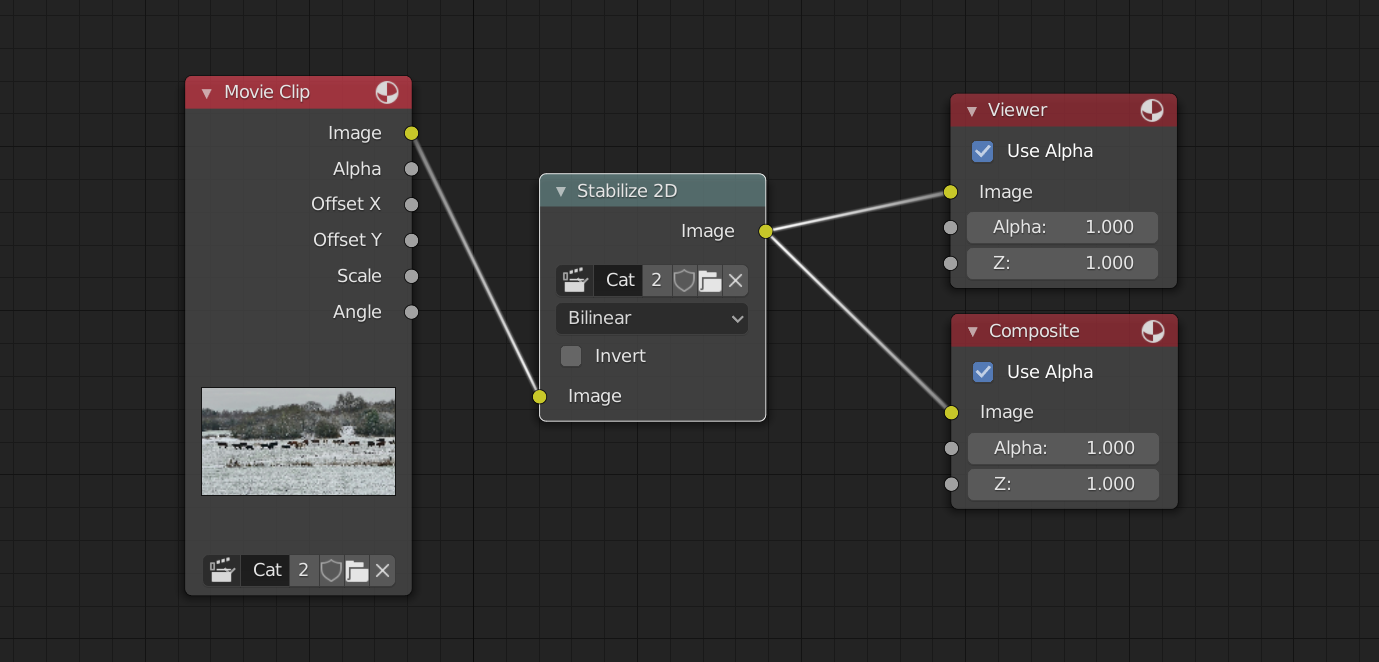
Once we have changed a few settings we can jump to the Compositor and apply the Stabilization effect to our Video. 

I hope this tutorial helps with your projects and as always, Thanks for reading!.