18 March, 2021

Blender Add-on: The Shader Library [Version 1.08] - The Cosmic Shader Update


In this video, we take a look at another update for The Shader Library (version 1.08). 

In this update we we now have Cosmic Shaders!. These Shaders are Procedurally Generated and have the ability to be changed for variations.

Changes as of version 1.08:

Cosmic Shaders Added;

  • Dust Planet - A Barren Planet with optional Atmospheric Glow.
  • Continental World - An Earth-like Planet with optional Clouds and Atmosphere.
  • Star Sphere - A Star-field that is best used on (though not restricted to) a sphere.


More Planets will be added in future updates, if you have any suggestions on what you would like to see added or have any suggestions on options you would like in the Operator be sure to let me know in the Video's comments.

You can download the updated script here. 


Once you have downloaded the update, you will now have the Cosmic Shaders Tab.

With your object selected, you can select the Planet Type and the desired Shader.


Star Sphere

With the "Star Scale" we can increase or decrease the size of the stars.

The "Star Density" will effect the coverage of the stars.


Dust Planet

The "Planet Hue" allows you to change the Hue of the whole Planet.

With the "Stripe Amount" You can add or remove the horizontal stripes. 

Enabling "Atmospheric Glow" should be a law!. 

Not really but it really does make everything look better. With it enabled you can choose the "Atmos Color" and "Glow Amount"


Continental World

The "Land Hue" is similar to the Dust Planet with the exception that this will only change the Hue for the Landmass. 

We can increase the size of the Continents with the "Land Scale" amount. 

With "Water Level" we can increase or decrease the level of the water. 

Atmospheric Glow is exactly the same as the Dust Planet.

Enable Clouds and you can change the "Cloud Scale" and "Cloud Visibility" too.


04 March, 2021

Blender Python Tutorial: Redo Operator


In this video we will be taking a look at how we can add the Redo Function to our add-ons.. *Spoiler Alert* - It's super easy!..

The Redo Operator Panel is a fantastic little addition to any add-on, it gives the user more control of the Operator (after Execution). For this example I will be using a Template Panel and Operator. You can find the Template script here.

I add a cube and change the location (though this could be any function or action you want). Then by adding some BL info in the operator we can add our Redo Panel. 

Once we have it working we can then make it look better by turning the Operator into a Pop-up Dialog Box (which is something we covered in a previous video). We can also make it look pretty by defining the draw method (again something we covered in a previous video).

Scripting Playlist

I hope you find this video helpful and I hope you guys are enjoying the series so far!.

As always, thanks for Reading!..

25 February, 2021

Blender Add-on: The Shader Library [Version 1.07] - UI and Misc Changes


In this Video, I wanted to share with you the update for the Shader Library Add-on (version 1.07). 

The Shader Library is a Free Blender Add-on I have been developing for a little while now. In this Version I had to make some adjustments under the hood and decided to make some additional improvements.

You can find the script here.

Check out the Full list of changes below:

Changes as of version 1.07

  • UI Change for Gold, Silver and Copper Shader. (Roughness Slider has been added).
  • UI Change for Ghost Shader. (Transparency Slider has been added ). 
  • Variant Option for Ghost Shader. (In Cycles Only, A Variant Option has been added).
  • UI Change for Hologram Shader. (Wireframe Amount Slider has been added).
  • Diamond Shader Fix (Diamond Shader now works in Eevee Render Engine).
  • Optimized script. (File size now 42KiB).


The Gold Shader Operator

This now has a Slider for the Roughness Value. You can set the Amount of Roughness to your Gold Shader.

(Note, This is the Same for the Silver and Copper Shader also)


The Ghost Shader Operator

This now has a Transparency Slider. At 0 the Shader is 100% Transparent. At 1, the Shader is Visible.


The Ghost Shader Operator (In Cycles)

When using the Ghost Shader in The Cycles Render Engine the Operator will have a "Variant" Option. (This name should be changed to something more applicable).


With this option enabled it will add a subtle effect to the shader and you will be able to see the whole object (see Images below).


Ghost Shader

This is the Ghost Shader by default. We can see through Suzanne and any objects behind her but we do not see her right ear and the other side of the Model.


The Ghost Shader (Variant)

With the Variant Enabled we can now see the whole model and anything behind it. I think the name "Variant" should be changed to something more applicable. (Got an idea what that should be? Let us know in the comments!).

The Hologram Shader Operator

The Wireframe Size Slider has been added. You can set how big or small the wireframe effect is. Though the slider goes up to 1, you can manually enter a value for more Wireframeness?...


 Update 1.08 is now available. Check out the blog post here. 


18 February, 2021

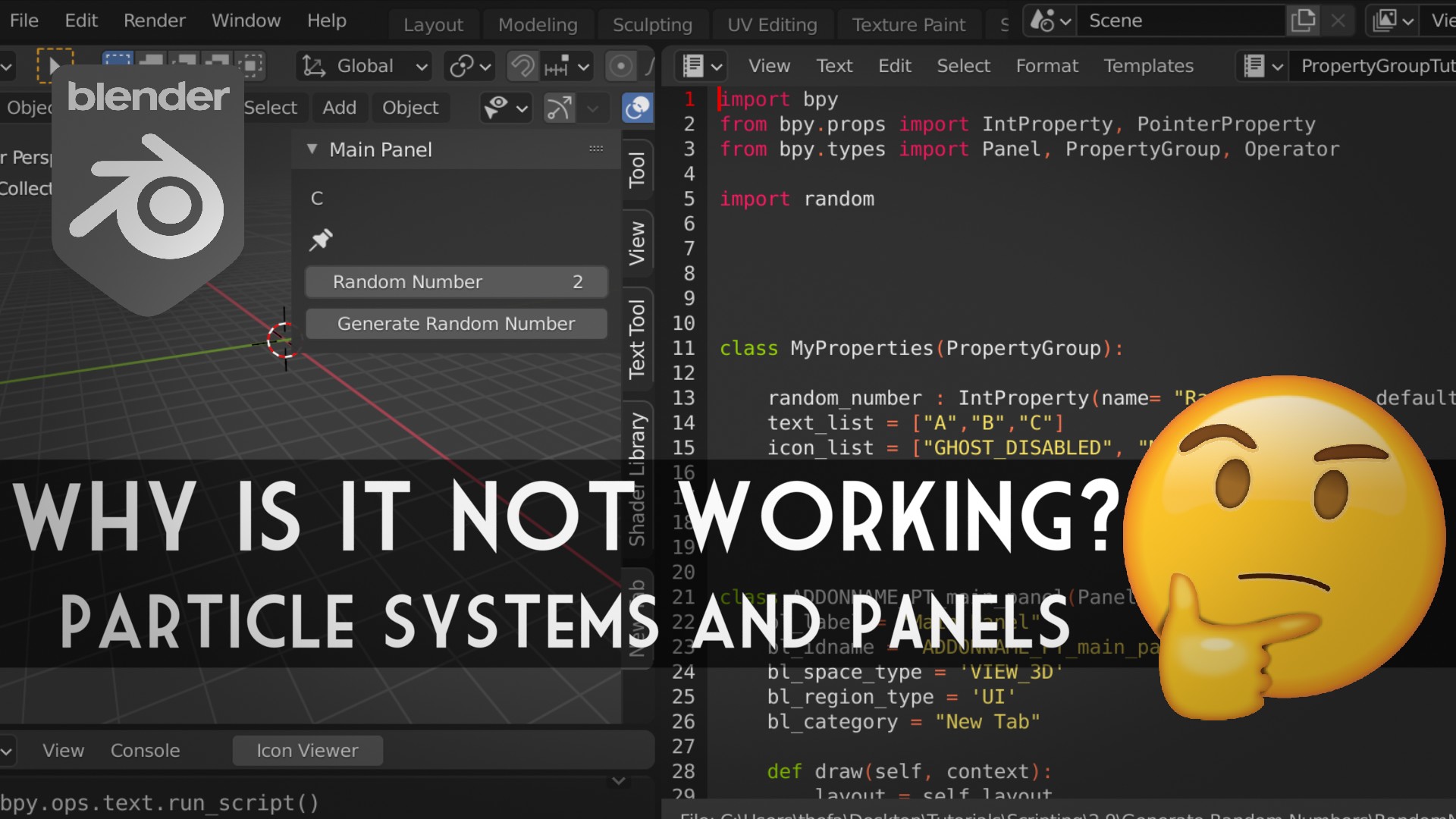
Why is it not Working? : Particle System and Panels


In this video, we will be doing another "Why is it not working?" thanks to a question I get asked quite frequently. "How can I add other things to my Panel".

We will be adding some Particle System Properties to our Panel. We can easily find out how to do this by checking out the Info Window as we actually change the options manually. Once we know where the options or Properties live we can then reference them in our Panel and bring over as much or as little as we want.

Having your commonly used tools and properties at hand is not only easy to do but is a great way to speed up your workflow.

You can download the Basic Template here, or you can download the finished script here.

I hope you find this video helpful and as always thanks for reading!.

04 February, 2021

Blender Python Tutorial: Application Timers


In this video, we will be taking a quick look at Timers. We will be creating a simple timer that will run a function once after a set amount of time. Then we will create a timer that will run a function once every second for a set amount of times.


This timer is quite simple but effective. If you want to run a Function after (x) amount of seconds this will do the trick.

We first create a Function and call it in_5_seconds. After 5 seconds we want something to happen, such as printing a message to the System Console.
We are not limited to just printing messages, we could add objects, make adjustments or even run other functions.

We can then call the Function as a Timer: bpy.app.timers.register(in_5_seconds, first_interval= 5). We just need to add the Function Name and then set the First Interval.

Since this is a float, we can lower the number to slow it down.


The next Timer we will be taking a look at is one where we can Run a Function once, every (x) amount of seconds for (n) amount of times. With this Timer we can set how many times we want a function to run along with how quick the function is ran between intervals.

We first create a Global Variable called counter. This variable will go up as our Function is ran. Once it hits a defined value it will then stop running the Function.

For this Timer we must make sure we add the If statement. We need to tell the Timer when to stop. By using the Counter we can define the amount of times the Function is ran. When we call this Timer we only need to add the Function Name.

There are other example of Timers and if you want to check out the Official Docs you can click here. If you want to see more Complex Timers be sure to let us know in the comments.

I hope you find this helpful and as always thanks for reading!.